My clothing space La Poste works without a native application. Access from a smartphone relies entirely on the web browser, which raises a concrete question: how to make the usage smooth when the portal was not designed as a mobile application, sessions expire, and display can vary from one phone to another?
Mobile web portal vs native application: how the format changes daily
The platform monespacehabillement.laposte.fr displays responsively in the browser. This technical choice has direct consequences on the user experience compared to a dedicated application.
| Criteria | Web portal (browser) | Native application (comparison) |
|---|---|---|
| Installation | None, access via URL | Download from a store |
| Push notifications | None | Yes, tracking alerts |
| Session persistence | Quick expiration, frequent reconnection | Session maintained in the background |
| Offline storage | None (blank page without network) | Local cache, partial consultation |
| Display | Responsive, sometimes truncated | Optimized for each screen size |
| Home screen shortcut | Possible manually | Automatic upon installation |
The absence of push notifications means that no automatic reminder alerts about an open allocation campaign or a shipped package. For an agent who manages their orders solely from their phone, each consultation requires a manual reconnection with username and password.
The ability to access my clothing space La Poste remains functional on most recent mobile browsers, provided that a few technical adjustments are known.
Transforming monespacehabillement into a quasi-app shortcut on smartphone
The portal does not have an application, but mobile browsers allow simulating a similar experience. The method varies depending on the operating system.
Shortcut on iPhone with Safari
Open Safari on the login page monespacehabillement.laposte.fr. Tap the share icon (square with an upward arrow), then select “Add to Home Screen”. An icon then appears like a classic application, and a simple tap opens the login page directly.
Shortcut on Android with Chrome
In Chrome, access the portal, tap the three dots in the top right, then “Add to Home Screen”. The shortcut behaves like an application launcher. On some Android phones, Chrome even offers to open the site in a separate window mode, without a visible address bar.
This manipulation does not solve the session issue. The browser does not keep the connection active between uses, which forces the user to re-enter the La Poste username each time they open it, sometimes several times a week.
Expired sessions and truncated display: the two recurring blocks on mobile
The majority of difficulties reported by agents on mobile do not concern the catalog or the points system. They focus on two specific technical points.
Quick session expiration
The clothing portal disconnects the user after a short period of inactivity. On a smartphone, where one easily switches from one application to another, this delay is often exceeded without the agent realizing it. Returning to the page then displays a login screen instead of the cart or catalog.
To limit inconvenience, three reflexes can save time:
- Save the username and password in the browser’s integrated password manager (iCloud Keychain on iPhone, Chrome manager on Android), which reduces entry to a biometric validation
- Complete the order in a single session without navigating between other tabs or applications during item selection
- Create a reminder in the phone’s calendar for allocation campaign opening dates, since the portal sends no notifications
Truncated display depending on the phone model
The responsive interface of the portal does not always adapt correctly. On some small screens, validation buttons or catalog filters may disappear below the edge of the screen. Enabling desktop mode in the browser often fixes this display issue.
In Chrome, this option is found in the three dots menu, under “Desktop site”. In Safari, it is accessible via the “aA” button in the address bar. Desktop mode loads the full version of the site, sometimes less readable but functionally complete.
Mobile login and La Poste username: checks before contacting support
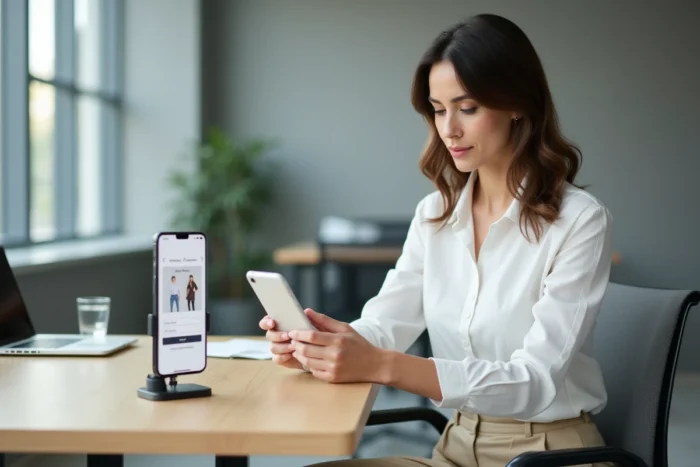
The login identifier is the one assigned by La Poste upon starting the job. The password is linked to the professional account. In case of forgetfulness, the portal’s login page offers a reset link that sends an email to the agent’s professional address.
Before calling HR support, three quick checks eliminate most mobile blocks:
- Confirm that the entered URL is indeed monespacehabillement.laposte.fr (variations without “mon” or with a different extension do not work)
- Check that the browser accepts third-party cookies, sometimes blocked by default on Safari with private browsing mode
- Ensure that the network connection is stable, as a switch from Wi-Fi to 4G during loading can interrupt authentication
A blocked identifier after several incorrect attempts requires unlocking by the HR service. The portal does not offer automatic unlocking in this case.
The monespacehabillement portal remains an internal web tool that is not intended to become a mobile application. Agents who order exclusively from their smartphone can compensate for the limitations of the format by combining screen shortcuts, password managers, and desktop mode. Mobile access works, provided one adapts their habits to the web format rather than waiting for the comfort of a non-existent application.